MCP Server BETA
How to use Astro's MCP server
The MCP Server is currently in beta. AI agents can make mistakes, always verify the data before making strategic decisions. MCP interactions can consume a significant number of tokens, keep an eye on your AI provider's usage dashboard to avoid unexpected costs.
The Astro MCP (Model Context Protocol) server exposes app data and functionality through a local API that can be used by AI assistants like Claude, Cursor, and VS Code Copilot.
Looking for ready-to-use prompts? Check out the MCP Prompts Library.
How it works
The server runs in the background over local HTTP (default port 8089) and accepts POST /mcp requests conforming to the MCP Streamable HTTP protocol. When a request arrives, it executes the corresponding tool, accesses Astro’s local database, and returns the result as JSON.
The server starts and stops with Astro. It must be manually enabled in Settings.
Security
The server enforces the following protections:
- Localhost-only: connections are accepted exclusively from
127.0.0.1(IPv4) and::1(IPv6). Any connection arriving from a LAN or external IP is immediately dropped at the TCP level, before reading any data. - Rate limiting: each client is limited to 60 requests per minute. Requests exceeding this limit receive a
429 Too Many Requestsresponse. - No CORS headers: the server does not send
Access-Control-Allow-Originheaders, so browser-based cross-origin requests are blocked by default. MCP clients (Claude Code, Cursor, VS Code) are not affected since they connect directly without a browser context.
Enabling the server
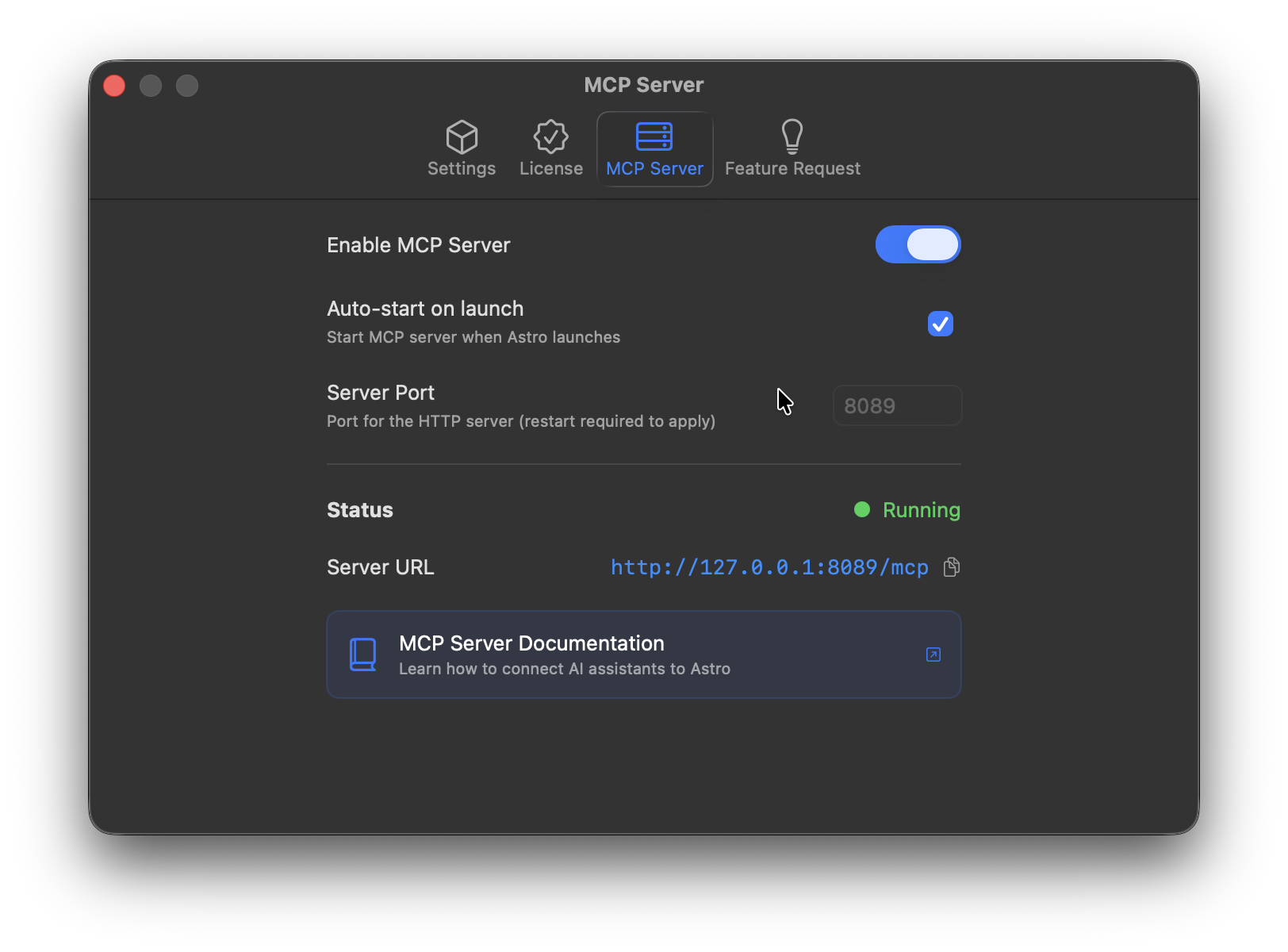
- Open Astro → Settings → MCP Server
- Enable the Enable MCP Server toggle
- Verify (or change) the port — default
8089 - The server starts automatically
Client configuration
Create or edit ~/.cursor/mcp.json:
{
  "mcpServers": {
    "astro": {
      "url": "http://127.0.0.1:8089/mcp"
    }
  }
}
Then restart Cursor. The server will appear in the list of available MCP servers.
Custom port
If you changed the port in Astro’s settings, update the URL accordingly:
http://127.0.0.1:PORT/mcpAvailable tools
| Tool | Description |
|---|---|
list_apps | List all tracked apps |
get_app_keywords | Tracked keywords for an app |
search_rankings | Keyword rankings with optional history |
get_app_ratings | App ratings by store/country with optional history |
extract_competitors_keywords | Extract keywords from competitor apps using NLP |
add_app | Add an app to tracking |
add_keywords | Add keywords to tracking (up to 100 in batch) |
set_keyword_note | Set, update, or delete a note on a keyword |
set_keyword_tag | Add or remove a tag from a keyword |
manage_tag | List, create, or update tags |
search_app_store | Live App Store search |
get_keyword_suggestions | AI keyword suggestions for an app |
Tool notes
add_keywords: requiresstore(e.g."us","it") andappNameorappId. Automatically skips already-tracked keywords.search_rankings: returns current rankings. UseincludeHistory: truefor full history.get_app_ratings: useincludeHistory: trueto get all historical data points.extract_competitors_keywords: the keyword must already be tracked in Astro. Uses stored ranked app data to generate keyword combinations with popularity scores (only keywords with popularity > 5).set_keyword_note: passnoteto add/update; omit it or pass an empty string to delete the existing note.set_keyword_tag: useaction: "add"oraction: "remove". The tag must already exist — create it first withmanage_tag.manage_tag: thelistaction requires no additional parameters. Available colors:red,orange,yellow,green,blue,purple,gray.search_app_store: returns 50 results by default, max 100.get_keyword_suggestions: works for both tracked and untracked apps. PassappIddirectly if the app is not in Astro yet.
Troubleshooting
Server not responding
- Make sure Astro is open and the MCP server is enabled in Settings
- Check that the port is not in use by another process:
lsof -i :8089 - The server only accepts connections from
127.0.0.1— make sure your MCP client is configured with that address, not a LAN IP
429 Too Many Requests
- The server enforces a limit of 60 requests per minute. If your client exceeds this, wait a moment and retry.
Tool not found
- Verify the exact tool name (case-sensitive)
- Restart the server from Astro’s settings
Error “App not found”
- Use
list_appsto see available apps - For tools that accept
appId, use the numeric App Store ID (e.g."1234567890")
Still have questions? Write us an email.